Author Archives: dante3355

Summary of Actions

Style

I have changed the heading and base fonts to “Noto Serif.” Also, I added a background image of a foggy sunset over mountains.

Items in Menu

My blog consists of a home page detailing why I made the website, 4 different categories, a widget, and the current page you are reading from. The 4 categories are the Adobe programs we covered throughout the course (Illustrator, InDesign, Photoshop, Premiere). The widget lists the top posts and pages on my site.

Goal for Website

My goal for this website was to display the work I have done in New Media Production this semester. I also wanted to describe the techniques I learned in each Adobe program.

Final Thoughts

Overall, I was extremely pleased with the work I did this semester in Mr. Dupont’s class. I spent many hours each week outside of class working on various projects. I learned a great deal about each Adobe program. I am, to say the least, very proud of the overall body of work, including this website.

Working With Text

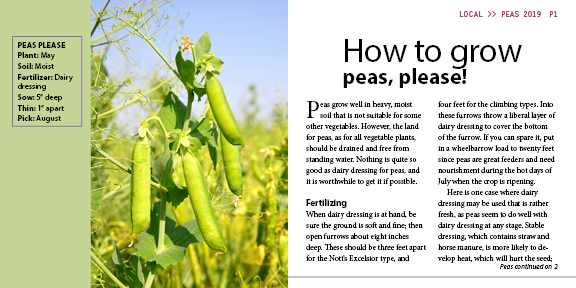
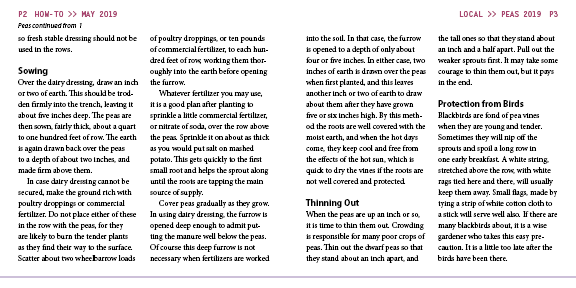
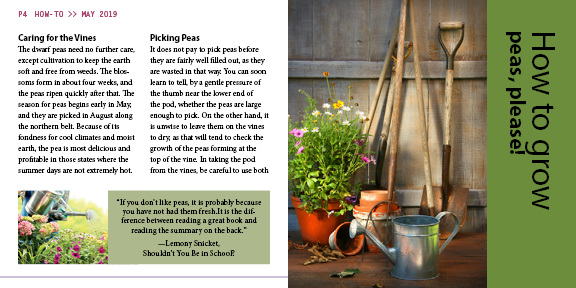
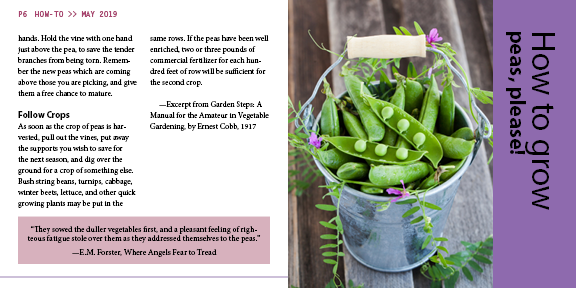
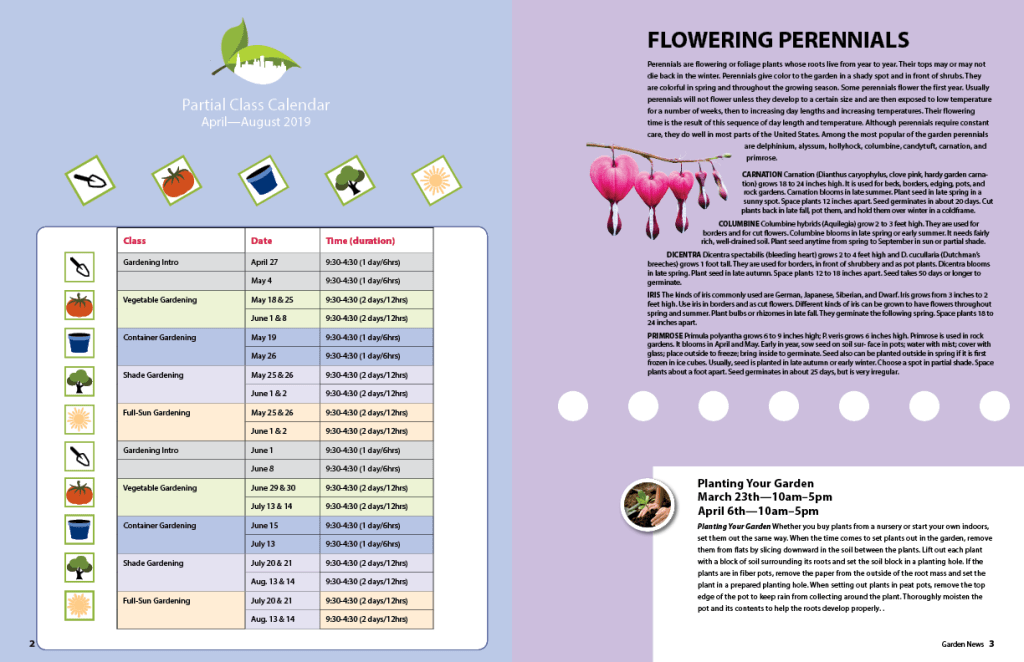
The main objective of this InDesign project was having a direct flow of text from page to page. InDesign’s auto text flow capabilities makes it a unique program to use. After loading the text needed for the assignment, I placed it on the document, held down the shift key, and clicked multiple times to auto flow the text to each page.

After applying the text, I then sorted the wording and organized the article. I applied the drop cap feature to the first letter of the article. Additionally, I made a bold heading for each different topic. After doing so, i adjusted the text on page 4 so that the image and quote on the bottom of the page would not be covered. Finally, I used jump lines to indicate the page number that the article continued on or originated from.

Designing a Magazine

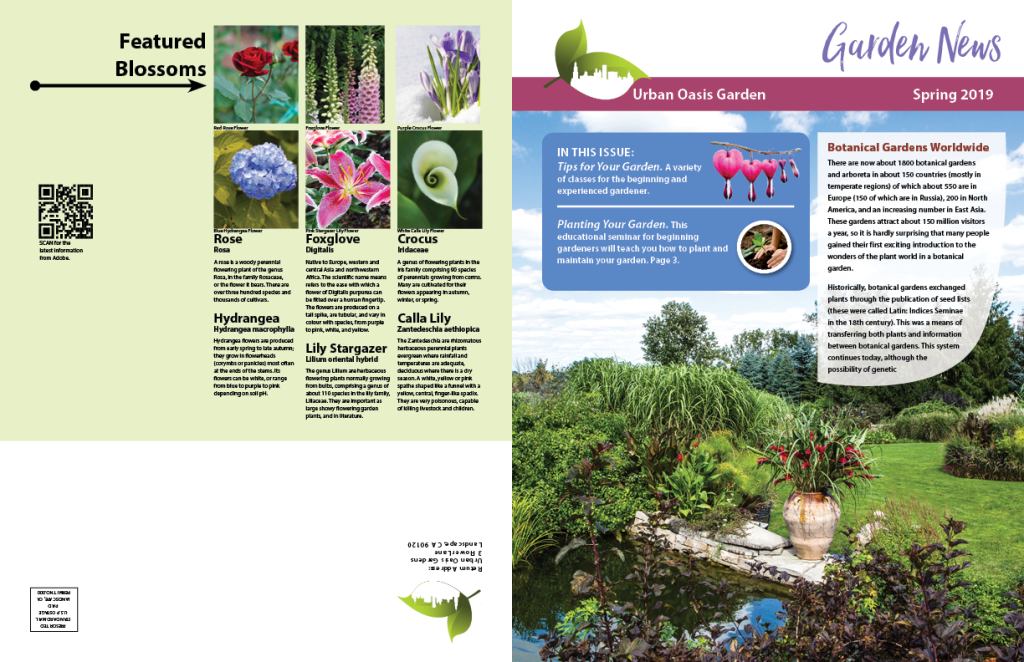
In this assignment, I combined a wide array of InDesign techniques and concepts to make this magazine. I will share a few of those techniques with you in this post.

One key concept I applied was reshaping. The text box entitled “Botanical Gardens Worldwide” was originally a rectangle. I manipulated and reshaped the text box to add style to the magazine. Additionally, on page 1, I auto-fit the 6 flower images to fit the specific frame of each. After doing so, I enhanced the quality of each image to eliminate any blurriness in the pictures. I moved each image in their frame in order to center specific parts of each flower image.

Another technique I applied was the idea of wrapping text. On page 4, I wrapped the text around the image of the bleeding heart flower. Also, using the InDesign software, I evenly aligned the small icons above the chart on page 3 and circles going across page 4.

Premiere Experiences Over the Years

I was first introduced to Adobe Premier my freshman year of high school. At the time, I had no clue what I was doing in the program. After continually using the program, I was able to grasp a basic understanding of core concepts such as video trimming and video/audio transitions. When I started using Premier in this course, the layout of the program did not seem familiar at all. I had not used Premier in nearly 6 years, so that was certainly expected. When we started using Premier, I realized that although the layout was different, most of the actions, shortcuts, and commands were familiar to me.

Of the four programs we used in the course, I enjoyed Premier the most. The idea of video editing is something that i enjoy doing. In high school, we were responsible for filming, producing, and editing scenes. I did not like the filming or producing part. However, i enjoyed being able to attempt to edit my videos. That enjoyment stayed with me as I was editing videos in this course. I found it quite intriguing being able to manipulate videos and make them better than how they started.

Advanced Editing

The attached video demonstrates various advanced editing techniques. I used a rolling edit to edit two clips. A rolling edit is when one clip is made shorter while the second clip is made longer by the same amount, or vice versa. The main purpose of a rolling edit is to trim or lengthen clips without adding length to the video. Additionally, I used multiple keyboard shortcuts to trim video clips. The keyboard edits were tough to remember at first. After getting used to them, they became easier to use.

Frankenstein Advanced Compositing

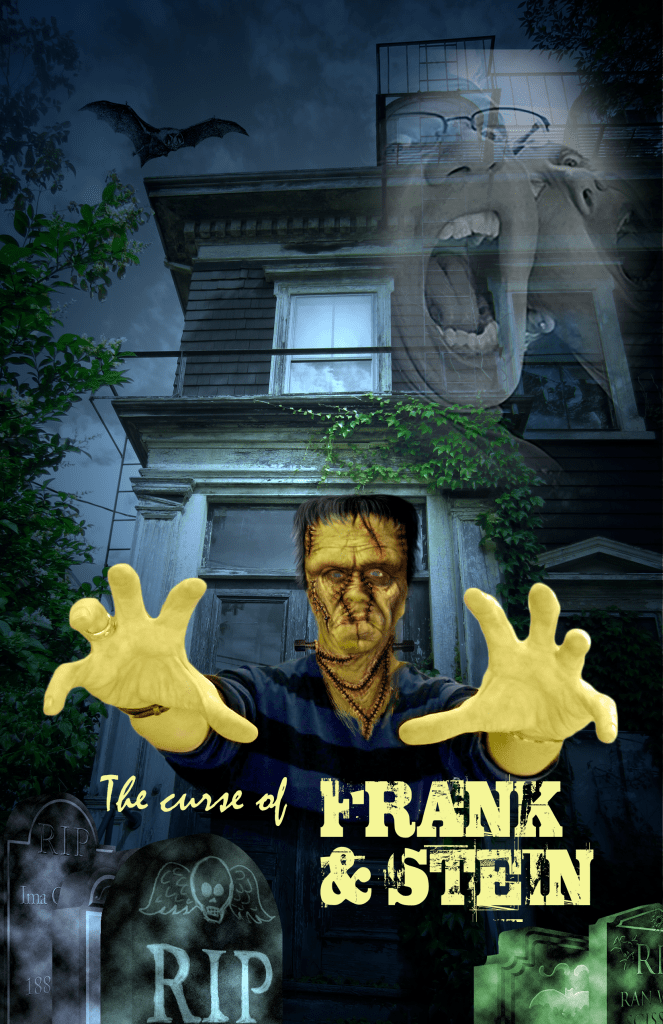
Of all the different work I did in Photoshop throughout the course, this was by far the most interesting and complex image I produced. It combined various techniques and tools that were all integral to the end result. Frankenstein’s face was a byproduct of rearranging layers, applying smart filters, editing layers onto one another, and applying color effects. I then dragged the edited Frankenstein image onto the background image. Additionally, I applied filters and digital color effects to the tombstones in order to give the poster an eery feeling. Perhaps the most intriguing part of this poster is the faded image in the top right corner. I drew an elliptical marquee, copy and pasted the image into it, and then blended the image into the poster. Overall, I enjoyed making the Frankenstein poster with Photoshop because of its complexity and advanced nature.

Slideshow of Various Photoshopped Images

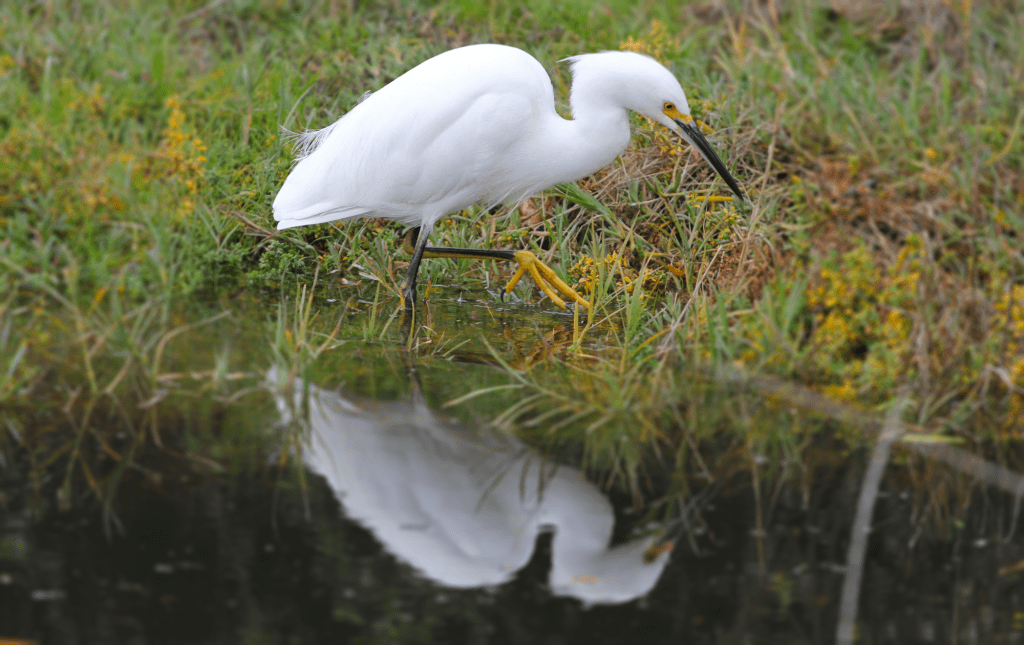
Here is a sampling of five different pictures that I edited and produced with Adobe Photoshop. For each image I had to apply different techniques to create the finished product. I will take you through a few of the techniques used in each photo:

  • Image 1 (Egret): I blurred the grass behind the egret. After doing so, I cleared up the egret and made it the main focal point of the image.
  • Image 2 (Wine Glass): This picture is an example of focus stacking. Unlike image 1, where the background grass is blurred, the wine glass and beach are both in focus. This photo is one of my favorites because both the background and foreground are in focus.
  • Image 3 (Hawaii Postcard): The main Photoshop technique used in the postcard was layering. By layering the image, I was able to create a vivid, colorful postcard.
  • Image 4 (Magazine Cover): In this image, I manipulated text in order to add to the image on the cover of the magazine.
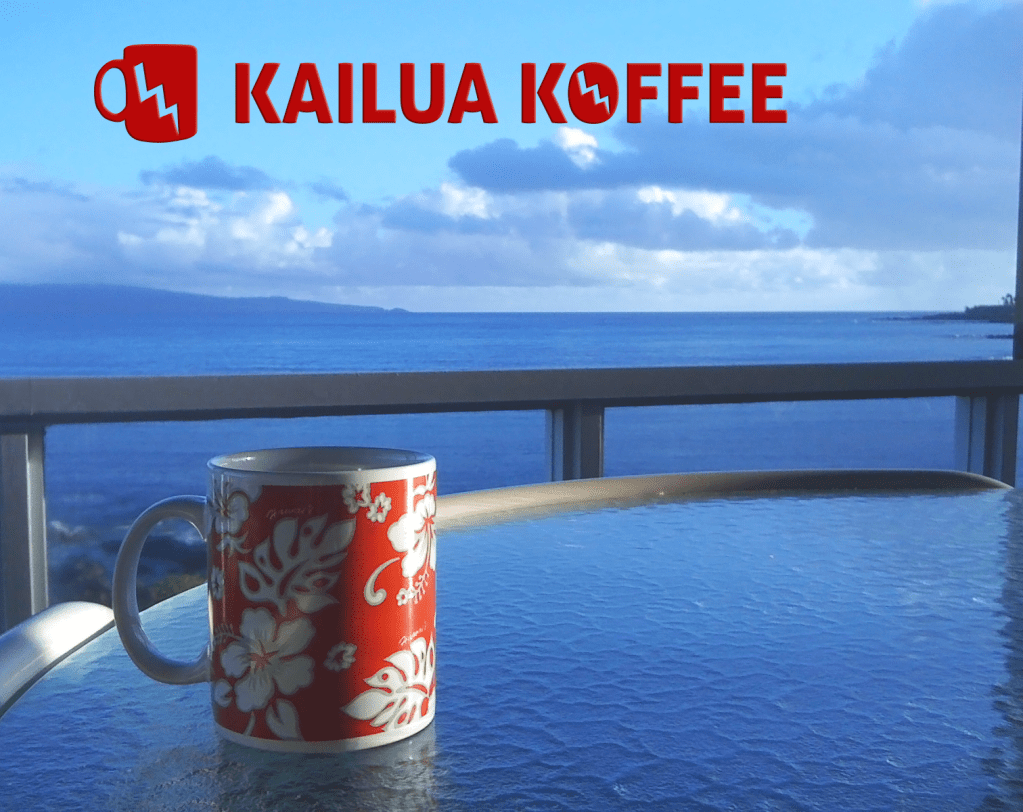
  • Image 5 (Coffee Mug): The image of the coffee mug is an example of a vector illustration. I drew the outline of the mug using the pen tool. By doing such, I created a custom shape that I used in the brand logo at the top of the image.

Editing Shapes and Paths

Camping Poster

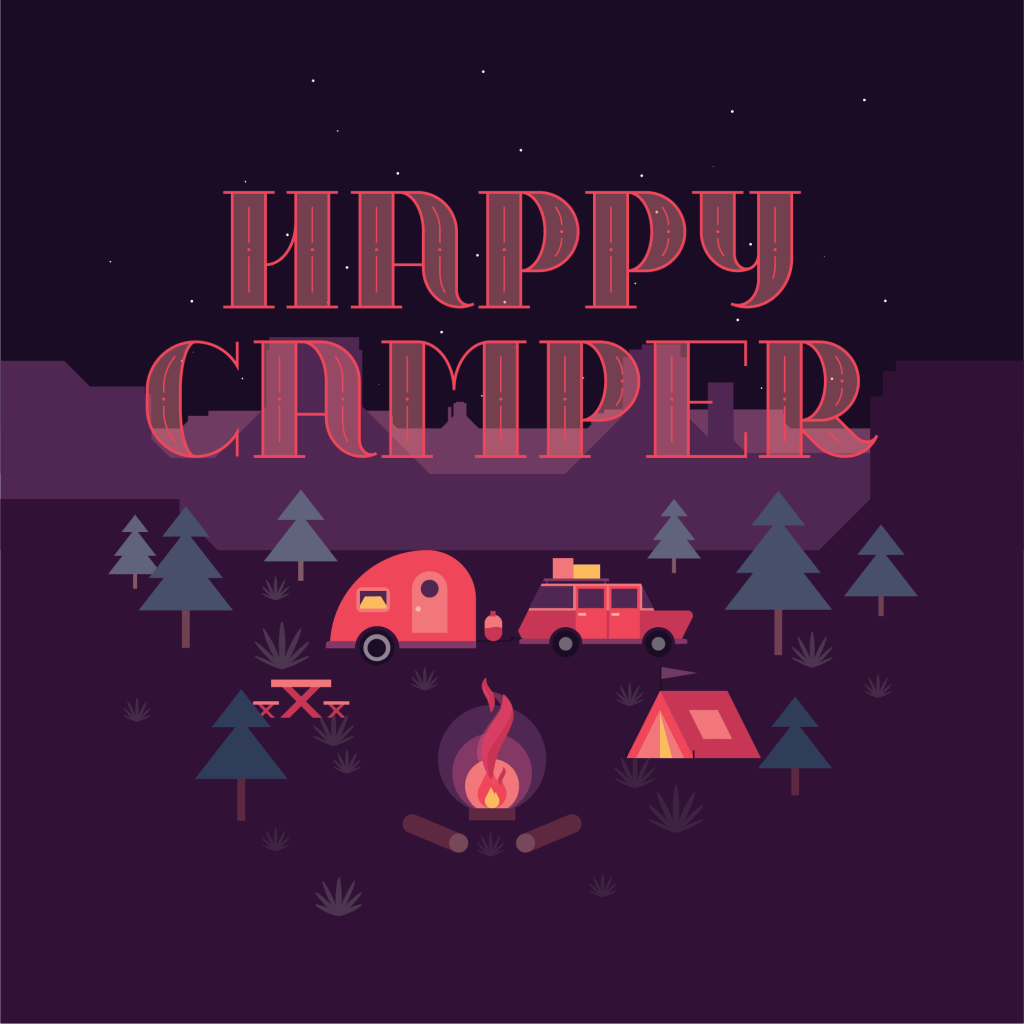
Just by looking at the finished product, this does not seem like a challenging illustration. However, each individual part took time and contains intricate details. In order to produce this illustration, I had to combine multiple shapes into one. This includes the door, window, and tires on the trailer, as well as the trailer as a whole. Also, the triangles in the tent, the car doors, and the plants scattered around the canvas. The most intriguing part of this poster was creating the flame illustration for the campfire. To make the flame, I started with a simple straight line. Then I manipulated the line by curving it and adjusting its width and stature.

Using the Pen Tool

Swan Vector Illustration

In Adobe Illustrator, various techniques are used to turn basic shapes into graphic designs or drawings. The above image is a vector illustration of a swan. The illustration was made using the pen tool and various curving techniques. I enjoyed making the swan illustration. At first, it was quite challenging because I struggled to draw the wing of the swan. After multiple attempts, I was able to draw the wing to my satisfaction.

Introduce Yourself (Example Post)

This is an example post, originally published as part of Blogging University. Enroll in one of our ten programs, and start your blog right.

You’re going to publish a post today. Don’t worry about how your blog looks. Don’t worry if you haven’t given it a name yet, or you’re feeling overwhelmed. Just click the “New Post” button, and tell us why you’re here.

Why do this?

  • Because it gives new readers context. What are you about? Why should they read your blog?
  • Because it will help you focus you own ideas about your blog and what you’d like to do with it.

The post can be short or long, a personal intro to your life or a bloggy mission statement, a manifesto for the future or a simple outline of your the types of things you hope to publish.

To help you get started, here are a few questions:

  • Why are you blogging publicly, rather than keeping a personal journal?
  • What topics do you think you’ll write about?
  • Who would you love to connect with via your blog?
  • If you blog successfully throughout the next year, what would you hope to have accomplished?

You’re not locked into any of this; one of the wonderful things about blogs is how they constantly evolve as we learn, grow, and interact with one another — but it’s good to know where and why you started, and articulating your goals may just give you a few other post ideas.

Can’t think how to get started? Just write the first thing that pops into your head. Anne Lamott, author of a book on writing we love, says that you need to give yourself permission to write a “crappy first draft”. Anne makes a great point — just start writing, and worry about editing it later.

When you’re ready to publish, give your post three to five tags that describe your blog’s focus — writing, photography, fiction, parenting, food, cars, movies, sports, whatever. These tags will help others who care about your topics find you in the Reader. Make sure one of the tags is “zerotohero,” so other new bloggers can find you, too.